- Published on
Build a Modern Blog with Next.js + TailwindCSS
- Authors
- Name
- Zairyl Zafra
- @zrylzfra


Building a Production-Ready Blog with Next.js & TailwindCSS

Want to create a blazingly fast, SEO-optimized blog that looks professional and loads in milliseconds? Let's build one with Next.js and TailwindCSS.
Why Next.js + TailwindCSS for Blogging?
Next.js Advantages
// Next.js gives you:
// ✅ Static Site Generation (SSG) - Pre-rendered at build time
// ✅ Server-Side Rendering (SSR) - Dynamic content
// ✅ API Routes - Backend functionality
// ✅ Image Optimization - Automatic image processing
// ✅ File-based Routing - No router configuration needed

export async function getStaticProps() {
  const posts = await getAllPosts()
  return { props: { posts } }
}
// This runs at BUILD TIME, creating static HTML
// Result: Lightning-fast page loads
Performance Benefits:
- Sub-second page loads with static generation
- Automatic code splitting - Only load what's needed
- Prefetching - Next.js prefetches linked pages
- Image optimization - WebP format, lazy loading
- Bundle size optimization - Tree shaking, minification
TailwindCSS Benefits
<!-- Instead of writing CSS: -->
<style>
  .card {
    padding: 1rem;
    background: white;
    border-radius: 0.5rem;
    box-shadow: 0 1px 3px rgba(0, 0, 0, 0.1);
  }
</style>

<!-- Use Tailwind utility classes: -->
<div class="p-4 bg-white rounded-lg shadow-md">Content here</div>

<!-- Benefits:
  ✅ No CSS file switching
  ✅ No naming conflicts
  ✅ Responsive design built-in
  ✅ Dark mode support
  ✅ Smaller bundle size
-->
Method 1: Using the Official Template (Recommended for Beginners)
Step 1: Create Your Project
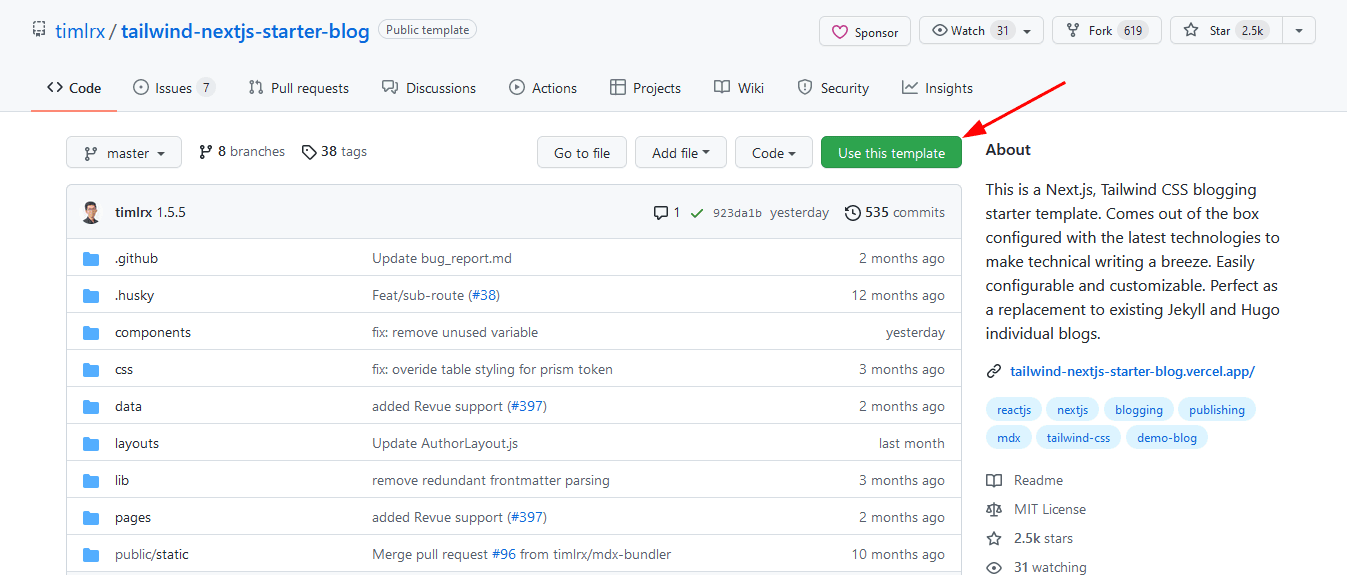
Option A: Use the Template Repository
- Visit Tailwind Next.js Starter Blog
- Click "Use this template"
- Name your repository (e.g.,
my-awesome-blog) - Click "Create repository from template"

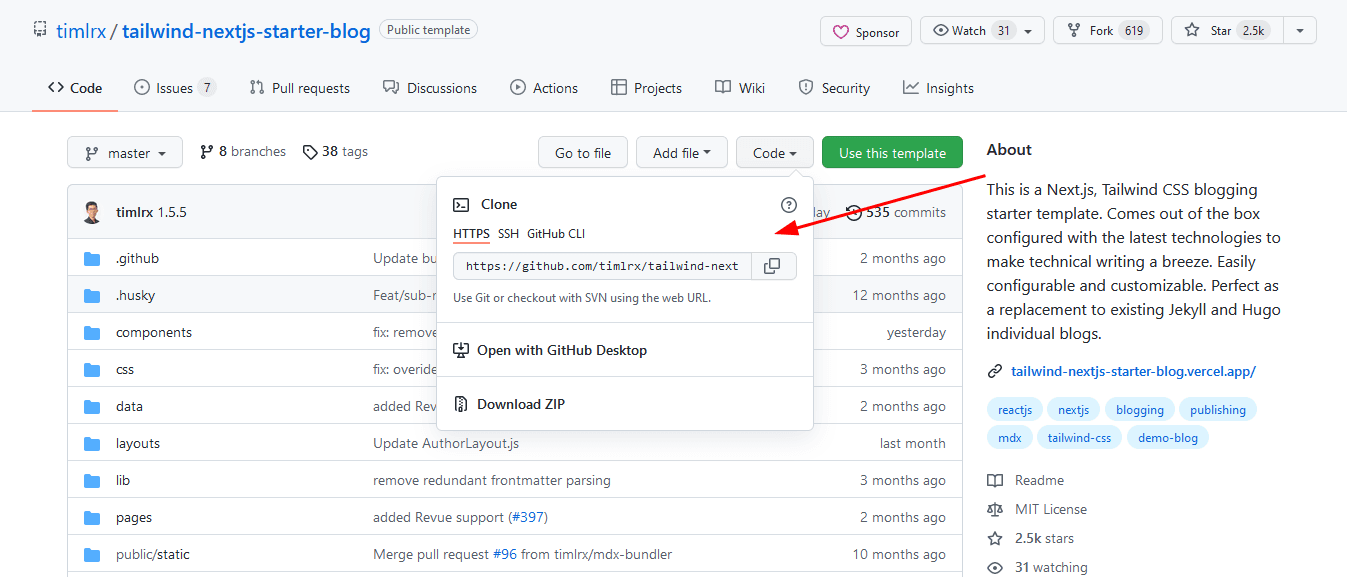
Option B: Clone the Repository
# Clone the template
git clone https://github.com/timlrx/tailwind-nextjs-starter-blog.git my-blog

# Navigate to the project
cd my-blog

# Remove the original git history
rm -rf .git

# Initialize your own repository
git init
git add .
git commit -m "Initial commit"

Step 2: Install Dependencies
# Using npm
npm install

# Using yarn
yarn install

# Using pnpm (faster)
pnpm install
What gets installed:
- Next.js framework
- React library
- TailwindCSS
- MDX processor
- Image optimization tools
- Analytics integrations
- And more...
Step 3: Start Development Server
# Start the development server
npm run dev

# Or with yarn
yarn dev

# Or with pnpm
pnpm dev
Open http://localhost:3000 in your browser.
You should see your blog running! 🎉
Development Features:
- Hot Reload - Changes appear instantly
- Error Overlay - See errors in the browser
- Fast Refresh - Preserves component state
Method 2: Building from Scratch (For Learning)
Step 1: Create Next.js Project
# Create new Next.js app with TypeScript
npx create-next-app@latest my-blog --typescript --tailwind --app

# Navigate to project
cd my-blog
Step 2: Install Additional Dependencies
npm install @next/mdx @mdx-js/loader @mdx-js/react
npm install gray-matter reading-time
npm install rehype-prism-plus rehype-autolink-headings
npm install remark-gfm remark-math rehype-katex
npm install -D tailwindcss-typography
Step 3: Configure MDX Support
// next.config.js
const withMDX = require('@next/mdx')({
  extension: /\.mdx?$/,
  options: {
    remarkPlugins: [],
    rehypePlugins: [],
    providerImportSource: '@mdx-js/react',
  },
})

module.exports = withMDX({
  pageExtensions: ['js', 'jsx', 'ts', 'tsx', 'md', 'mdx'],
  reactStrictMode: true,
  images: {
    domains: ['images.unsplash.com'],
  },
})
Step 4: Create Blog Structure
# Create necessary directories
mkdir -p data/blog
mkdir -p public/static/images
mkdir -p components
mkdir -p lib
mkdir -p layouts
Project Structure:
my-blog/
├── app/
│   ├── blog/
│   │   └── [slug]/
│   │       └── page.tsx
│   ├── page.tsx
│   └── layout.tsx
├── components/
│   ├── Header.tsx
│   ├── Footer.tsx
│   └── PostCard.tsx
├── data/
│   └── blog/
│       ├── my-first-post.mdx
│       └── another-post.mdx
├── lib/
│   └── mdx.ts
└── public/
    └── static/
        └── images/
Customizing Your Blog
1. Update Site Configuration
// data/siteMetadata.js
const siteMetadata = {
  title: 'My Awesome Blog',
  author: 'Your Name',
  headerTitle: 'My Blog',
  description: 'A blog about web development and technology',
  language: 'en-us',
  theme: 'system', // system, dark or light
  siteUrl: 'https://yourblog.com',
  siteRepo: 'https://github.com/yourname/blog',
  siteLogo: '/static/images/logo.png',
  image: '/static/images/avatar.png',
  socialBanner: '/static/images/twitter-card.png',
  email: 'your@email.com',
  github: 'https://github.com/yourname',
  twitter: 'https://twitter.com/yourhandle',
  linkedin: 'https://www.linkedin.com/in/yourprofile',
  locale: 'en-US',
  analytics: {
    googleAnalyticsId: '', // e.g. UA-000000-2 or G-XXXXXXX
    plausibleDataDomain: '', // e.g. yourdomain.com
  },
  newsletter: {
    provider: 'buttondown', // mailchimp, buttondown, convertkit, klaviyo, revue
  },
  comment: {
    provider: 'giscus', // giscus, utterances, disqus
    giscusConfig: {
      repo: process.env.NEXT_PUBLIC_GISCUS_REPO,
      repositoryId: process.env.NEXT_PUBLIC_GISCUS_REPOSITORY_ID,
      category: process.env.NEXT_PUBLIC_GISCUS_CATEGORY,
      categoryId: process.env.NEXT_PUBLIC_GISCUS_CATEGORY_ID,
    },
  },
}

module.exports = siteMetadata
2. Customize Colors and Styling
// tailwind.config.js
module.exports = {
  content: [
    './pages/**/*.{js,ts,jsx,tsx}',
    './components/**/*.{js,ts,jsx,tsx}',
    './layouts/**/*.{js,ts,jsx,tsx}',
  ],
  darkMode: 'class',
  theme: {
    extend: {
      colors: {
        primary: {
          50: '#eff6ff',
          100: '#dbeafe',
          200: '#bfdbfe',
          300: '#93c5fd',
          400: '#60a5fa',
          500: '#3b82f6', // Main brand color
          600: '#2563eb',
          700: '#1d4ed8',
          800: '#1e40af',
          900: '#1e3a8a',
        },
        gray: {
          // Custom gray scale
          900: '#1a202c',
          800: '#2d3748',
          700: '#4a5568',
          600: '#718096',
          500: '#a0aec0',
          400: '#cbd5e0',
          300: '#e2e8f0',
          200: '#edf2f7',
          100: '#f7fafc',
          50: '#ffffff',
        },
      },
      typography: (theme) => ({
        DEFAULT: {
          css: {
            color: theme('colors.gray.700'),
            a: {
              color: theme('colors.primary.500'),
              '&:hover': {
                color: theme('colors.primary.600'),
              },
            },
            h1: {
              fontWeight: '700',
              letterSpacing: theme('letterSpacing.tight'),
              color: theme('colors.gray.900'),
            },
            h2: {
              fontWeight: '700',
              letterSpacing: theme('letterSpacing.tight'),
              color: theme('colors.gray.900'),
            },
            code: {
              color: theme('colors.pink.500'),
            },
          },
        },
        dark: {
          css: {
            color: theme('colors.gray.300'),
            a: {
              color: theme('colors.primary.400'),
              '&:hover': {
                color: theme('colors.primary.300'),
              },
            },
            h1: {
              color: theme('colors.gray.100'),
            },
            h2: {
              color: theme('colors.gray.100'),
            },
            code: {
              color: theme('colors.pink.400'),
            },
          },
        },
      }),
    },
  },
  plugins: [require('@tailwindcss/typography'), require('@tailwindcss/forms')],
}
3. Create Your First Blog Post
---
title: 'My First Blog Post'
date: '2024-01-24'
tags: ['nextjs', 'blogging', 'web-dev']
draft: false
summary: 'This is my first blog post using Next.js and MDX!'
images: ['/static/images/first-post.jpg']
authors: ['default']
---

# Welcome to My Blog!

This is my **first post** using Next.js and MDX.

## What I'll Write About

I plan to write about:

- Web development
- JavaScript and TypeScript
- React and Next.js
- Best practices

## Code Examples Work Too!

```javascript
function greet(name) {
  console.log(`Hello, ${name}!`)
}

greet('World')
```
Stay tuned for more posts! 🚀
Save this as `data/blog/my-first-post.mdx`

---

## Key Features Explained

### 1. MDX Support - Write JSX in Markdown

```mdx
---
title: 'Interactive Blog Post'
---

import { CustomButton } from '@/components/CustomButton'

# Regular Markdown

This is normal markdown content.

## Interactive Components

<CustomButton onClick={() => alert('Clicked!')}>
  Click Me!
</CustomButton>

You can mix **markdown** with React components!

<div className="bg-blue-100 p-4 rounded">
  This is a custom styled section
</div>
Why MDX is Powerful:
- ✅ Write markdown naturally
- ✅ Embed React components
- ✅ Create interactive demos
- ✅ Reuse components across posts
2. Automatic Image Optimization
// components/Image.tsx
import NextImage from 'next/image'

export default function Image({ src, alt, ...props }) {
  return (
    <NextImage
      src={src}
      alt={alt}
      width={800}
      height={450}
      quality={90}
      placeholder="blur"
      blurDataURL="data:image/jpeg;base64,..."
      {...props}
    />
  )
}
Benefits:
- Automatically converts to WebP
- Lazy loads images
- Responsive sizing
- Blur-up placeholder
- 60% smaller file sizes on average
3. Dark Mode Support
// components/ThemeSwitch.tsx
'use client';

import { useTheme } from 'next-themes';

export default function ThemeSwitch() {
  const { theme, setTheme } = useTheme();

  return (
    <button
      onClick={() => setTheme(theme === 'dark' ? 'light' : 'dark')}
      className="rounded p-2 hover:bg-gray-200 dark:hover:bg-gray-700"
    >
      {theme === 'dark' ? '🌞' : '🌙'}
    </button>
  );
}
4. SEO Optimization
// app/blog/[slug]/page.tsx
export async function generateMetadata({ params }) {
  const post = await getPostBySlug(params.slug)

  return {
    title: post.title,
    description: post.summary,
    authors: [{ name: post.author }],
    openGraph: {
      title: post.title,
      description: post.summary,
      type: 'article',
      publishedTime: post.date,
      authors: [post.author],
      images: [
        {
          url: post.image,
          width: 1200,
          height: 630,
          alt: post.title,
        },
      ],
    },
    twitter: {
      card: 'summary_large_image',
      title: post.title,
      description: post.summary,
      images: [post.image],
    },
  }
}
SEO Features:
- ✅ Automatic sitemap generation
- ✅ RSS feed
- ✅ Open Graph tags
- ✅ Twitter cards
- ✅ Structured data (JSON-LD)
- ✅ Semantic HTML
5. Analytics Integration
// app/layout.tsx
import { Analytics } from '@vercel/analytics/react';
import { GoogleAnalytics } from '@next/third-parties/google';

export default function RootLayout({ children }) {
  return (
    <html lang="en">
      <body>
        {children}
        <Analytics />
        <GoogleAnalytics gaId="G-XXXXXXXXXX" />
      </body>
    </html>
  );
}
Supported Analytics:
- Google Analytics 4
- Plausible Analytics
- Simple Analytics
- Vercel Analytics
- Custom solutions
6. Comments System
// components/Comments.tsx
import Giscus from '@giscus/react';

export default function Comments() {
  return (
    <Giscus
      repo="your-username/your-repo"
      repoId="YOUR_REPO_ID"
      category="Comments"
      categoryId="YOUR_CATEGORY_ID"
      mapping="pathname"
      reactionsEnabled="1"
      emitMetadata="0"
      theme="preferred_color_scheme"
      lang="en"
    />
  );
}
Options:
- Giscus (GitHub Discussions)
- Utterances (GitHub Issues)
- Disqus
- Custom solution
Advanced Features
1. Reading Time Estimation
// lib/mdx.ts
import readingTime from 'reading-time'

export function getReadingTime(content: string) {
  const stats = readingTime(content)
  return stats.text // "5 min read"
}
2. Table of Contents
// components/TOC.tsx
export default function TOC({ headings }) {
  return (
    <nav className="toc">
      <h3>Table of Contents</h3>
      <ul>
        {headings.map((heading) => (
          <li key={heading.id} style={{ marginLeft: `${heading.level * 1}rem` }}>
            <a href={`#${heading.id}`}>{heading.text}</a>
          </li>
        ))}
      </ul>
    </nav>
  );
}
3. Code Syntax Highlighting
// next.config.js
const rehypePrism = require('rehype-prism-plus')

module.exports = withMDX({
  options: {
    rehypePlugins: [
      [
        rehypePrism,
        {
          showLineNumbers: true,
          showCopyButton: true,
        },
      ],
    ],
  },
})
Supported Languages:
- JavaScript, TypeScript
- Python, Java, C++
- HTML, CSS, SCSS
- Bash, Shell
- And 150+ more!
4. Math Equations with KaTeX
When $a \ne 0$, there are two solutions to $(ax^2 + bx + c = 0)$:

$$
x = {-b \pm \sqrt{b^2-4ac} \over 2a}
$$
5. Newsletter Integration
// components/NewsletterForm.tsx
export default function NewsletterForm() {
  const [email, setEmail] = useState('');
  const [status, setStatus] = useState<'idle' | 'loading' | 'success' | 'error'>('idle');

  const subscribe = async (e: React.FormEvent) => {
    e.preventDefault();
    setStatus('loading');

    try {
      const response = await fetch('/api/subscribe', {
        method: 'POST',
        headers: { 'Content-Type': 'application/json' },
        body: JSON.stringify({ email }),
      });

      if (response.ok) {
        setStatus('success');
        setEmail('');
      } else {
        setStatus('error');
      }
    } catch (error) {
      setStatus('error');
    }
  };

  return (
    <form onSubmit={subscribe}>
      <input
        type="email"
        value={email}
        onChange={(e) => setEmail(e.target.value)}
        placeholder="your@email.com"
        required
      />
      <button type="submit" disabled={status === 'loading'}>
        {status === 'loading' ? 'Subscribing...' : 'Subscribe'}
      </button>
      {status === 'success' && <p>Thanks for subscribing!</p>}
      {status === 'error' && <p>Something went wrong. Try again.</p>}
    </form>
  );
}
Deployment
Deploy to Vercel (Recommended)
# Install Vercel CLI
npm i -g vercel

# Login to Vercel
vercel login

# Deploy
vercel

# For production
vercel --prod
Or use the Vercel Dashboard:
- Push your code to GitHub
- Visit vercel.com
- Click "New Project"
- Import your GitHub repository
- Click "Deploy"
Automatic features with Vercel:
- ✅ Automatic deployments on git push
- ✅ Preview deployments for PRs
- ✅ Edge network (fast globally)
- ✅ Analytics included
- ✅ Zero configuration
Deploy to Netlify
# Install Netlify CLI
npm i -g netlify-cli

# Login
netlify login

# Deploy
netlify deploy

# For production
netlify deploy --prod
Deploy to GitHub Pages
# Install gh-pages
npm install --save-dev gh-pages

# Add to package.json
{
  "scripts": {
    "export": "next build && next export",
    "deploy": "gh-pages -d out"
  }
}

# Deploy
npm run export
npm run deploy
Performance Optimization
1. Lighthouse Score
The template achieves near-perfect scores:
- Performance: 100
- Accessibility: 100
- Best Practices: 100
- SEO: 100
2. Bundle Size
# Analyze bundle size
npm install @next/bundle-analyzer

# Add to next.config.js
const withBundleAnalyzer = require('@next/bundle-analyzer')({
  enabled: process.env.ANALYZE === 'true',
});

module.exports = withBundleAnalyzer(nextConfig);

# Run analysis
ANALYZE=true npm run build
3. Performance Tips
// 1. Use dynamic imports for heavy components
const HeavyComponent = dynamic(() => import('@/components/HeavyComponent'), {
  loading: () => <p>Loading...</p>,
});

// 2. Optimize images
<Image
  src="/image.jpg"
  alt="Description"
  width={800}
  height={600}
  priority // For above-fold images
  quality={90}
/>

// 3. Use font optimization
import { Inter } from 'next/font/google';

const inter = Inter({ subsets: ['latin'] });

// 4. Implement ISR (Incremental Static Regeneration)
export async function getStaticProps() {
  const posts = await getPosts();

  return {
    props: { posts },
    revalidate: 60, // Regenerate every 60 seconds
  };
}
Troubleshooting
Common Issues
1. Port 3000 already in use
# Kill process on port 3000
npx kill-port 3000

# Or use different port
npm run dev -- -p 3001
2. Module not found errors
# Clear cache and reinstall
rm -rf node_modules package-lock.json
npm install
3. Build errors
# Clear Next.js cache
rm -rf .next

# Rebuild
npm run build
4. MDX not rendering
# Check file extension is .mdx
# Verify frontmatter format
# Ensure MDX plugins are installed
npm install @next/mdx @mdx-js/loader @mdx-js/react
Conclusion
You now have a production-ready blog with:
✅ Lightning-fast performance (100 Lighthouse score)
✅ SEO optimization (meta tags, sitemap, RSS)
✅ Modern features (dark mode, MDX, analytics)
✅ Responsive design (mobile-first approach)
✅ Easy content management (write in Markdown)
✅ Professional appearance (TailwindCSS styling)
Next Steps:
- Customize the design to match your brand
- Write your first blog posts
- Set up analytics to track visitors
- Add a newsletter to grow your audience
- Deploy to production
- Share your blog with the world!
Additional Resources
Official Documentation:
Learning Resources:
- Next.js Learn - Interactive tutorial
- TailwindCSS Tutorial
- React Documentation
Community:
"The best time to start a blog was yesterday. The second best time is now. Happy blogging!" 🚀